October 31, 2026
How to turn an AI character into a short video
Turn an AI character picture into a short clip. Use the still as a start frame, pick a video model and ask for one movement. Steps for genvi.
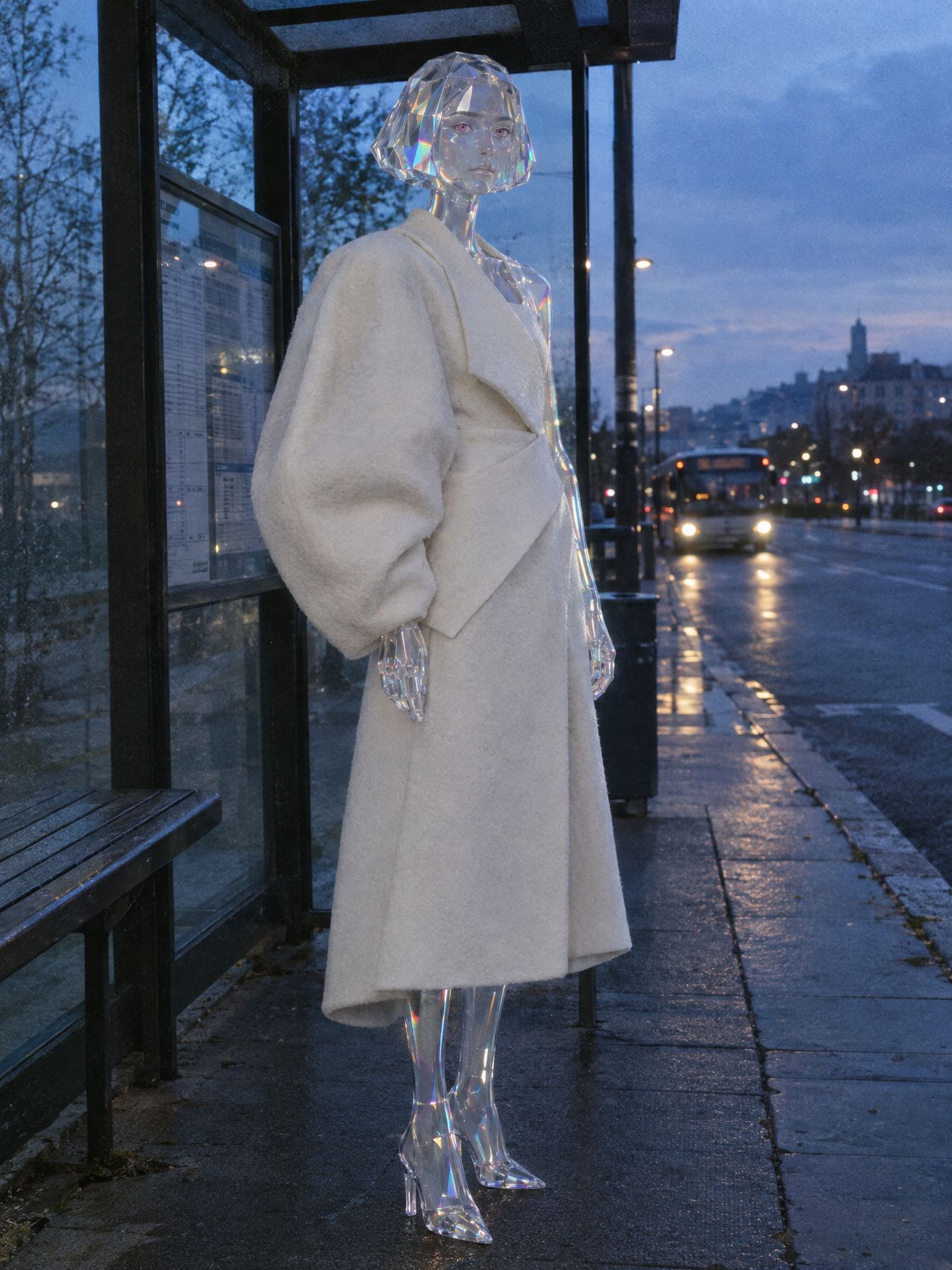
You can turn a picture of an AI character into a short video clip. This is called image to video: you give the AI a still picture, and it makes the picture move. This guide shows how to do it in genvi. We should be honest first. We have not made videos of the four characters in this guide, so every picture here is a still.
Instead of showing a clip we did not make, we show the stills we would start from and the steps we would take. If you have not made a character yet, start with how to make a weird AI influencer.
What you need
- A character picture you like. Pick one where the face is clear. Pick a full-body picture if you want walking.
- A genvi account with credits. Credits pay for each run. Video is priced by the second, so test with a short clip. Sign up if you need an account.
Step 1. Pick the right still
The first frame decides most of the clip. We call it the start frame. A good start frame has a clear face, plain light and room around the character to move. Here is a still we would pick for a short walking clip.
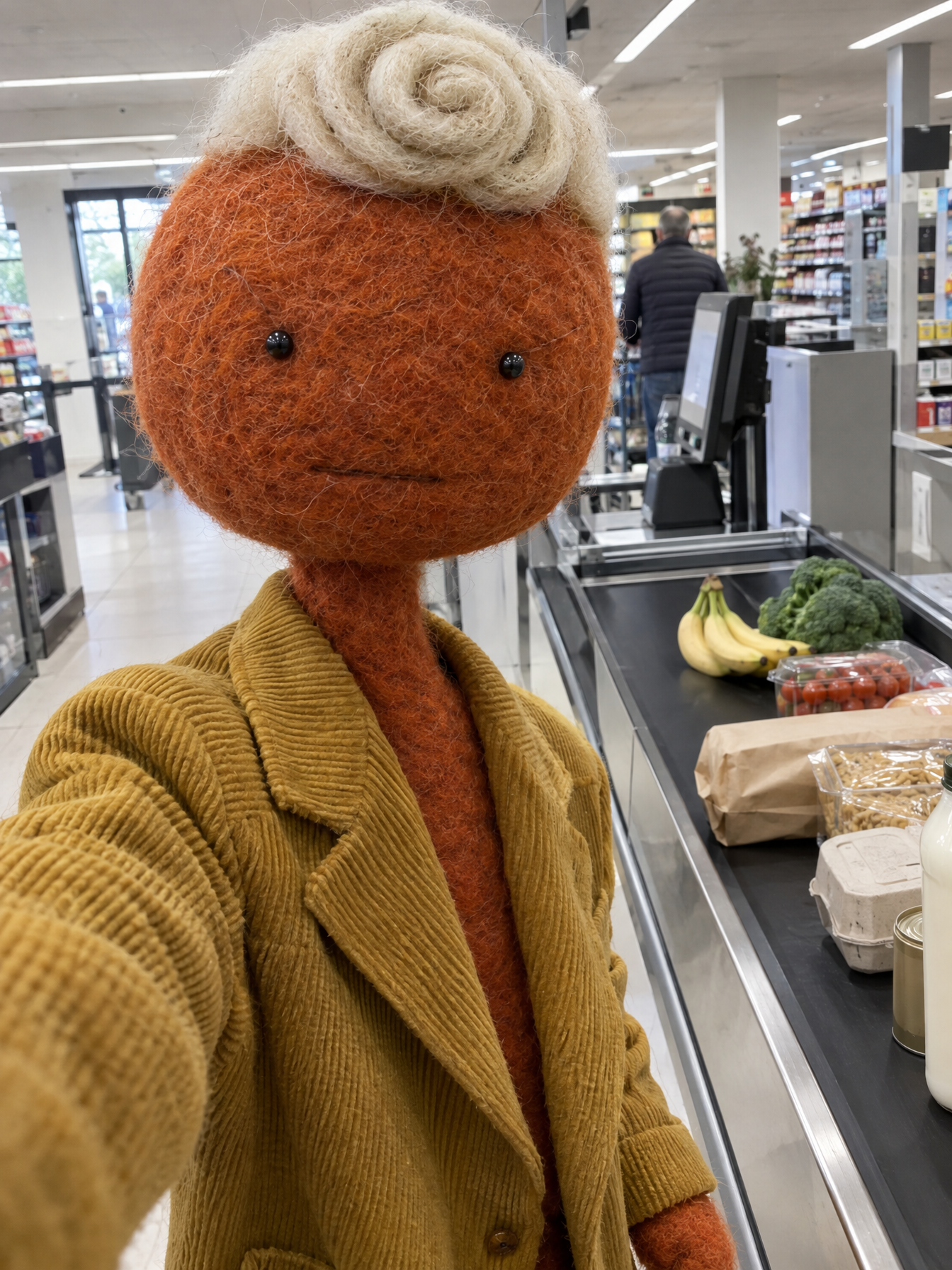
Tobias Fenn at a supermarket checkout, a playful felt puppet. We would use this still as a start frame. Made with GPT Image 2.5 Flare.
This one suits a tiny movement, like a blink, a head turn or a small step forward. It is a selfie, so a little handheld wobble would look natural.
Step 2. Pick a video model
A video model is the AI program that makes the motion. Most video models can start from your picture. Two examples in genvi that can start from a picture:
- Grok Imagine Video 1.5 takes a start frame, and clips run from 1 to 15 seconds in 480p, 720p or 1080p.
- Kling Video v3 Pro (Fal) can also animate a still.
The model picker shows the price before you run. Start with a short, low-cost test clip while you find the movement. Then run the version you like on a stronger model. For a longer guide, read how to animate a photo with AI.
Step 3. Add the still and set it as the Start frame
- On the Dashboard, open Chat Studio and create a project.
- Click the paperclip and choose Upload from device or Choose from your files.
- Click the small picture and set its role to Start frame.
- Choose a video model.
- Write one sentence about the movement, then send.
Another way is Persona, under the Formats tab. Pick your saved character, write a scene, and set Shot to Clip instead of Photo. That makes a short video of the scene with your saved character. It starts from your character and your words, not from a still you chose. Use the Chat Studio way when you want one exact picture to be the first frame.
Step 4. Ask for one movement
Models do one clear action better than three. Keep the sentence short, name the camera, and say what stays still. Here are lines we would try for our own characters:
- Tobias: "He looks left, then back at the camera. Handheld selfie, slight shake. Nothing else moves."
- Oriel: "She turns her head slowly toward the camera. Reflections slide across her skin. Locked-off camera."
- Juno: "She steps forward and the camera follows. Light flickers on her glass skin. No cuts."
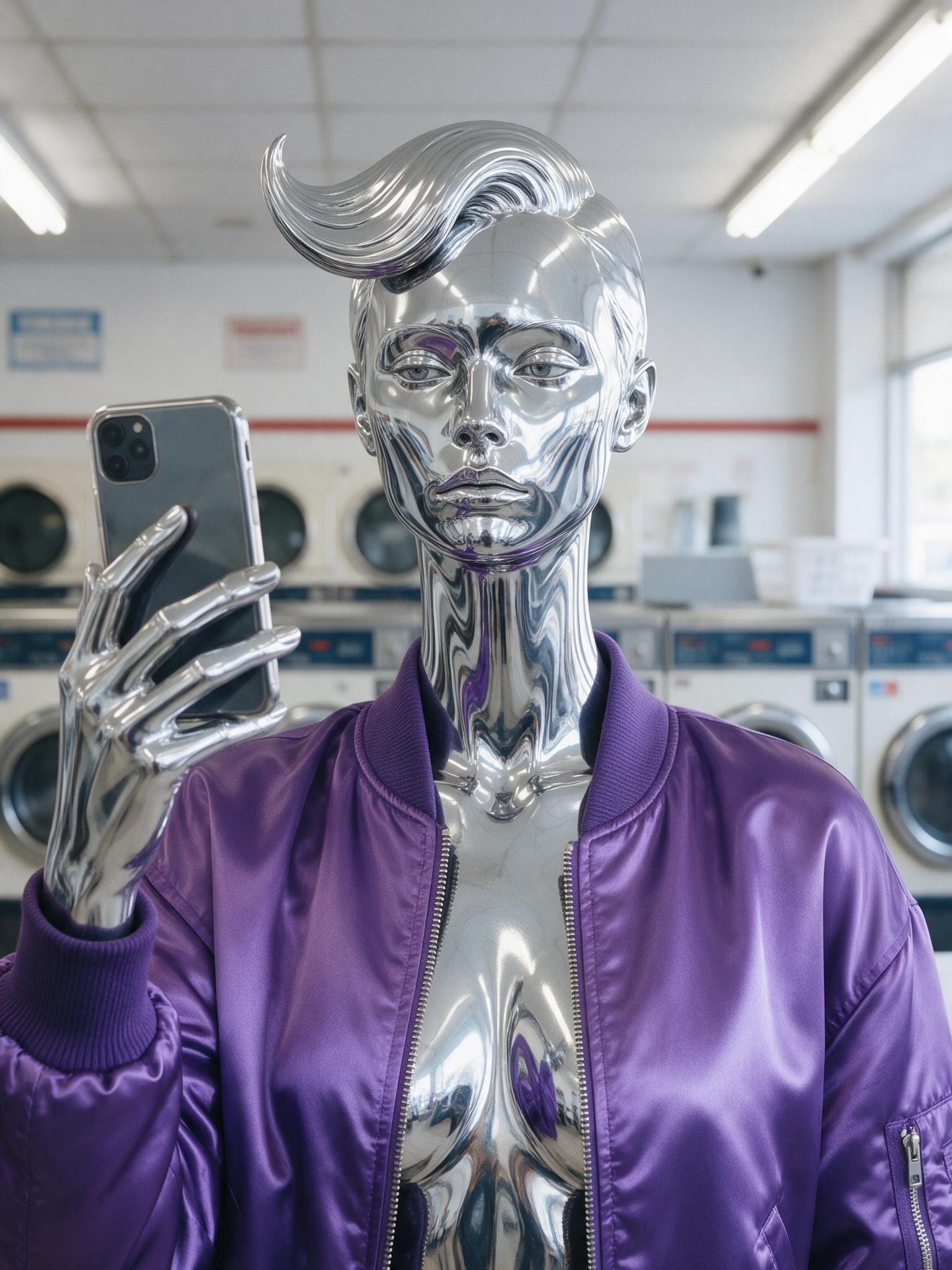
Oriel Vance in a laundromat, another still we would use as a start frame. Made with Seedream v5 Pro.
Step 5. Check the first frame and the face
Watch the first second. The clip should start on your picture. Watch for a face that slowly changes, or a strange material that turns normal. Strange materials are harder to hold than normal faces, so expect a few tries. If the face keeps changing, use a shorter clip and a calmer movement.
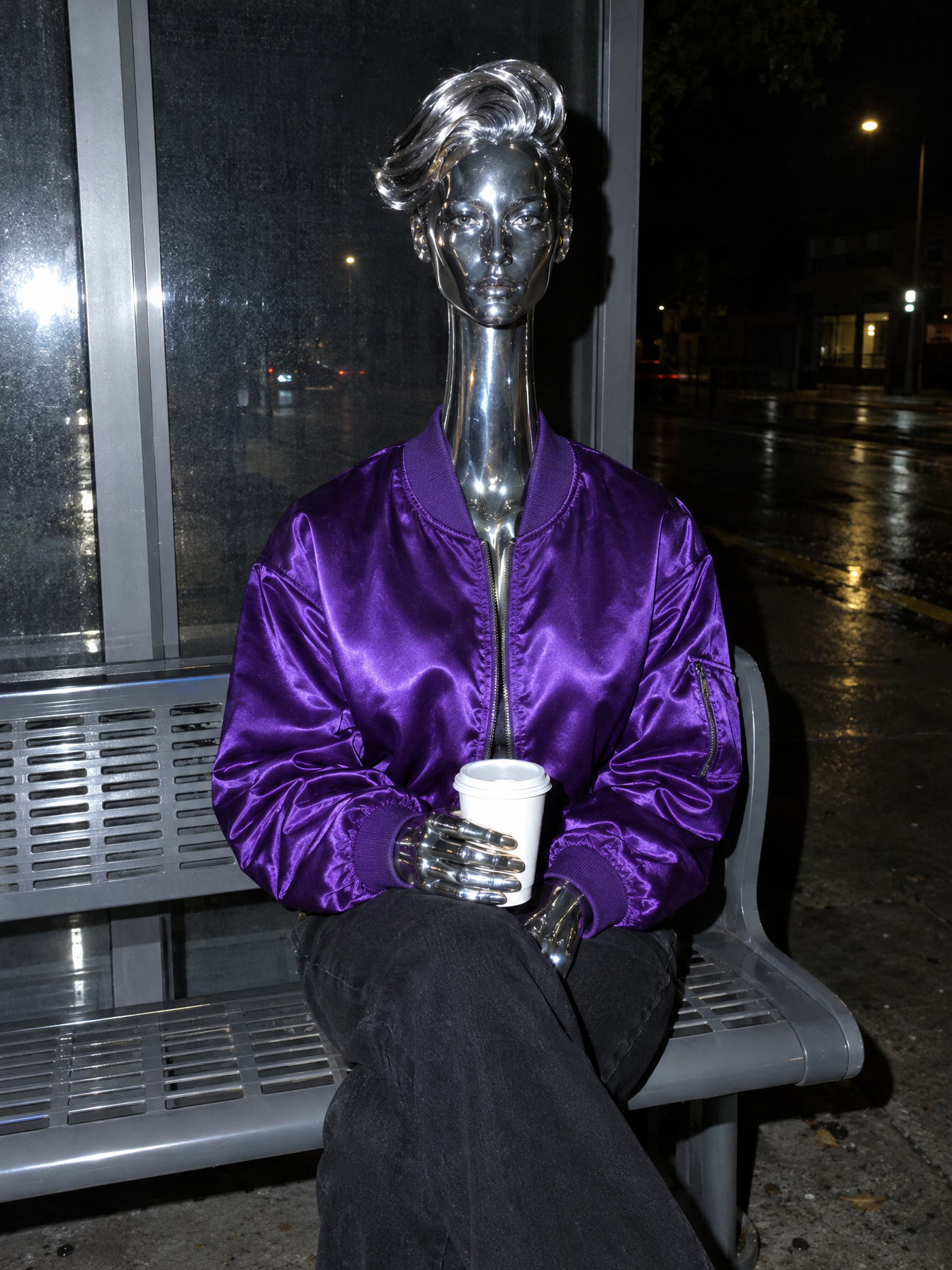
Oriel Vance at a bus stop. A seated, still pose like this suits a slow head turn. Made with GPT Image 2.5 Flare.
Add a voice
If your character should say a line, add the voice afterwards. See how to lip-sync a photo to audio and AI voices, consent and disclosure.
Keep it consistent across clips
Use the same character picture style and the same camera words for every clip. For longer stories, read how to keep a character consistent in AI video. For wording help, see surreal AI fashion prompts.
Post it honestly
Say in your caption that the character is AI. See the disclosure rules. Do not make clips of real people or existing characters.
What it costs
Video is priced by the second. A 6 second clip costs six times the per-second price in the picker. You see the price before you run, and credits return if a run fails. Plans and credits are on the plans page.
FAQ
Have you made clips of these characters?
No. We made the stills only. The steps above are how we would do it.
Which model should I start with?
A low-cost model, to find the movement. Then try a stronger one.
Why does the face change in my clip?
Strange materials are hard to hold. Use short clips and one gentle movement.
Can I animate a photo of a real person?
Only with their agreement. genvi checks each request and can refuse it.